Showing posts with label windows. Show all posts

Sunday, April 13, 2014

Windows Scripting (the normal shell) for Ex VB Programmers - Lesson 2–Solution

The following is the solution of the question in the last post. Printing the prime numbers between 1 and 100. This may not be the best logic, yet it gets what to be done. It is more important to develop a timely solution than an untimely one.

wscript.echo "1"
wscript.echo "2"
wscript.echo "3"
for x=5 to 100 step 2
    isprime=0
    for z=2 to x-1
        if x mod z = 0 then
            isprime=1
        end if
    next
    if isprime=0 then
        wscript.echo x
    end if
next

and the output

C:\scripts>cscript prime.vbs //nologo
1
2
3
5
7
11
13
17
19
23
29
31
37
41
43
47
53
59
61
67
71
73
79
83
89
97

Some more examples that you should try

1. List the Fibonacci series – first 15 numbers

2. Find the Square root of any number correct to 4 decimal places. (use Newton’s method)

Windows Scripting (the normal shell) for Ex VB Programmers - Lesson 2

In any programming language there are three things we need to learn at the earliest.

1. Types of variable

2. Selection Statements

3. Iteration or Loops

Since ours is a “get ready quick” course. We will only try what we think is essential.

1. Variable.

There are no types of variables. What ever you assign the variable takes that values. Unlike in other programming languages you have int, char, fload, date etc. There is nothing here. You can just put any value in any variable. The upside is variable usage is easy. Same variables can be recycled. The downside is explicit conversions are needed everytime a variable of a specific type is needed.

Assume you have a program with the following

i=5
wscript.echo i
i="Programs"
wscript.echo i

When you run it there is no error.

image


2. Selection statements.

Keeping it simple.

if <condn> then

<statements>

else

<statements>

randomize
i=int(rnd * 10)
wscript.echo i
if i mod 2 =0 then
    wscript.echo "Even Number"
else
    wscript.echo "Odd Number"
end if

randomize – resets the seed, so that you get a real random numbers all the time. rnd generates a random number between 0 and 0.999xxx. The int function converts the output to an integer (we don’t need the decimals). The mod is a operation to find the remainder.

The above program prints either even or odd depending on the random number. In the example the program is saved as third.vbs

C:\scripts>cscript third.vbs
Microsoft (R) Windows Script Host Version 5.8
Copyright (C) Microsoft Corporation. All rights reserved.

7
Odd Number

C:\scripts>

C:\scripts>cscript third.vbs
Microsoft (R) Windows Script Host Version 5.8
Copyright (C) Microsoft Corporation. All rights reserved.

1
Odd Number

C:\scripts>third
Microsoft (R) Windows Script Host Version 5.8
Copyright (C) Microsoft Corporation. All rights reserved.

0
Even Number

C:\scripts>cscript third.vbs
Microsoft (R) Windows Script Host Version 5.8
Copyright (C) Microsoft Corporation. All rights reserved.

6
Even Number

C:\scripts>

3. Iteration or Loops

The most convenient loop is the for – next.

An example

wscript.echo "Program 2"
for i=1 to 5
        wscript.echo i
next
wscript.echo "Random Numbers"
for i = 5 to 1 step -1
        randomize
        intnum=rnd
        wscript.echo int(intnum*10)
next


A simple program the prints, from 1 to 5. And then random numbers between 0 and 9.

Program 2
1
2
3
4
5
Random Numbers
1
0
8
2
0

Try this exercise.

Print the first 100 prime numbers.

use the concepts learnt.

Friday, September 14, 2012

Random Characters Folder Deletion (Windows 7)

After a windows update it not un-usual to see a folder with random characters. This folder cannot be deleted with regular deletion. For example, there is this folder with random characters after an update.

image

I try to delete the folder and get the message.

image

How to go about deleting the folder. The process is to change the permission and try the deletion.

1. Right click the folder, Select Properties.

image

2. Select Advanced, Owner Tab, Edit, and change the owner to Administrator. Check the check box to ensure everything inside the folder changes as well. Confirm with OK button.

image

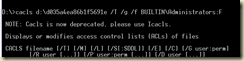
3. Goto Command Line (cmd.exe and run as administrator) and get the ACLs on the folder

image

image

Brief explanation what the command is doing.

a. cacls is for changing permissions (access control lists). In Windows 7 it is replaced with icacls.

b. This command has been since Windows NT days and is a convenient way to modify ACL’s of a large number of folders. (Alternative would be to go via Windows Explorer)

c. /t is for replacing the permissions.

d. /g is to grant permission, with :F meaning full control.

e. /f will give a “Yes” by default. else you need to answer the question “Are you sure (y/n)”


So there you are. You can now go and delete the folder.

Saturday, January 14, 2012

For all PC Windows users, CCCleaner

One good thing of PC is the ability to install and uninstall software. Install, try we like, use it and sometime later we remove.

All applications are not disciplined enough to clean back the registry entries, during uninstall. They leave out a lot of unwanted stuff. The average user may not not what rubbish is left. A simple and decent software is CCCleaner. It is free. You can download the software from here.  Once you download and install it.

Part 1: Run it.

image

Click on Analyze.

image

Your list will look different. (Close all browsers before running)

Click Run Cleaner. (It might ask if entries listed needs to be deleted, Confirm it if asked).

Click on Analyze again. And you should see a clean screen.


Part 2: Click on Registry on the left. Select “Scan for Issues”.

image

Select “Fix Selected Issues”, and If asked, select to delete entries.

Part 3: Select Tools and you can uninstall unneeded programs.

image


Part 4: Now for this you need to be CAREFUL. Certain times lots of programs like to start automatically when the machine starts. Some of the programs like to keep their updater to run all the time. These programs un-necessarily occupy RAM and slow down your PC.

image

Click on Startup and disable the entries. If you see something you are not very sure then do a quick search on google.


So that is the end of the post. Keep your desktops and laptops within your control.

Saturday, January 10, 2009

Windows 7

Yesterday the beta of windows 7 has been released. This has generated lots of interest, gossip, expectations and of course predictions. Since XP, Windows OS are moving seriously. The previous versions whether Me, 98, 95 etc have DOS Kernel based.

10 years back, the requirement of users was not that tough. Computers and OS were still evolving. Today we need everything in the OS, including a coffee maker and microwave. And so are the OS become obese.

Lets us good sense prevails and users become more matured.

image image
image image
image image
image image
image image
image image
image image